Say it
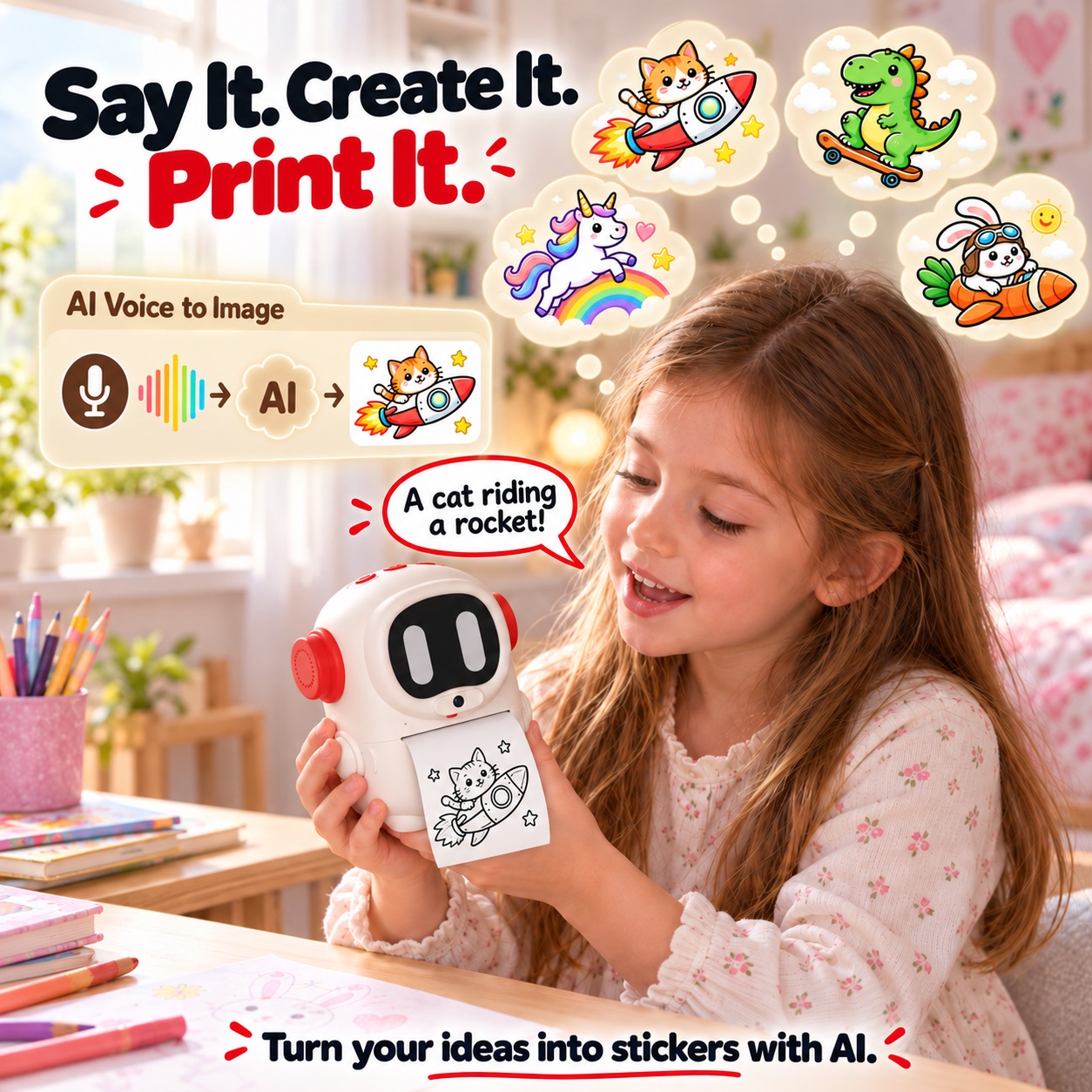
Choose Cartoon, Anime, Paper Cut, or Sticky note, then describe what you want to create.
 iBEEDBY KONAWAI
Say it, snap it, or send it. iBeed AI Voice Sticker Maker is a voice-powered thermal sticker printer with a built-in camera. Choose a style, edit a photo, add a frame, and preview your black-and-white print.
Four ways in
Choose Cartoon, Anime, Paper Cut, or Sticky note, then describe what you want to create.
Take a photo, select a photo mode, and add a built-in or AI-created frame before printing.
Browse the gallery and revisit saved Favorites to print a creation again.
Create on your phone and send the result straight to their printer.
Made for everyday magic
On-device creative tools
Open Style and choose Cartoon, Anime, Paper Cut, or Sticky note before describing your idea. The selected style carries into your next voice creation.
Capture with the built-in camera, then choose Grayscale, Photo, Cartoon, or Anime. Review the result on screen before printing in black and white.
Choose a built-in frame or create an AI frame with your voice. Reuse saved frames and find saved creations in Favorites for another print.
The setup flow lets a parent skip Wi-Fi or leave the PIN unset. Connect to Wi-Fi when you want AI generation, and add a PIN to protect settings when needed.
From first idea to favorite sticker
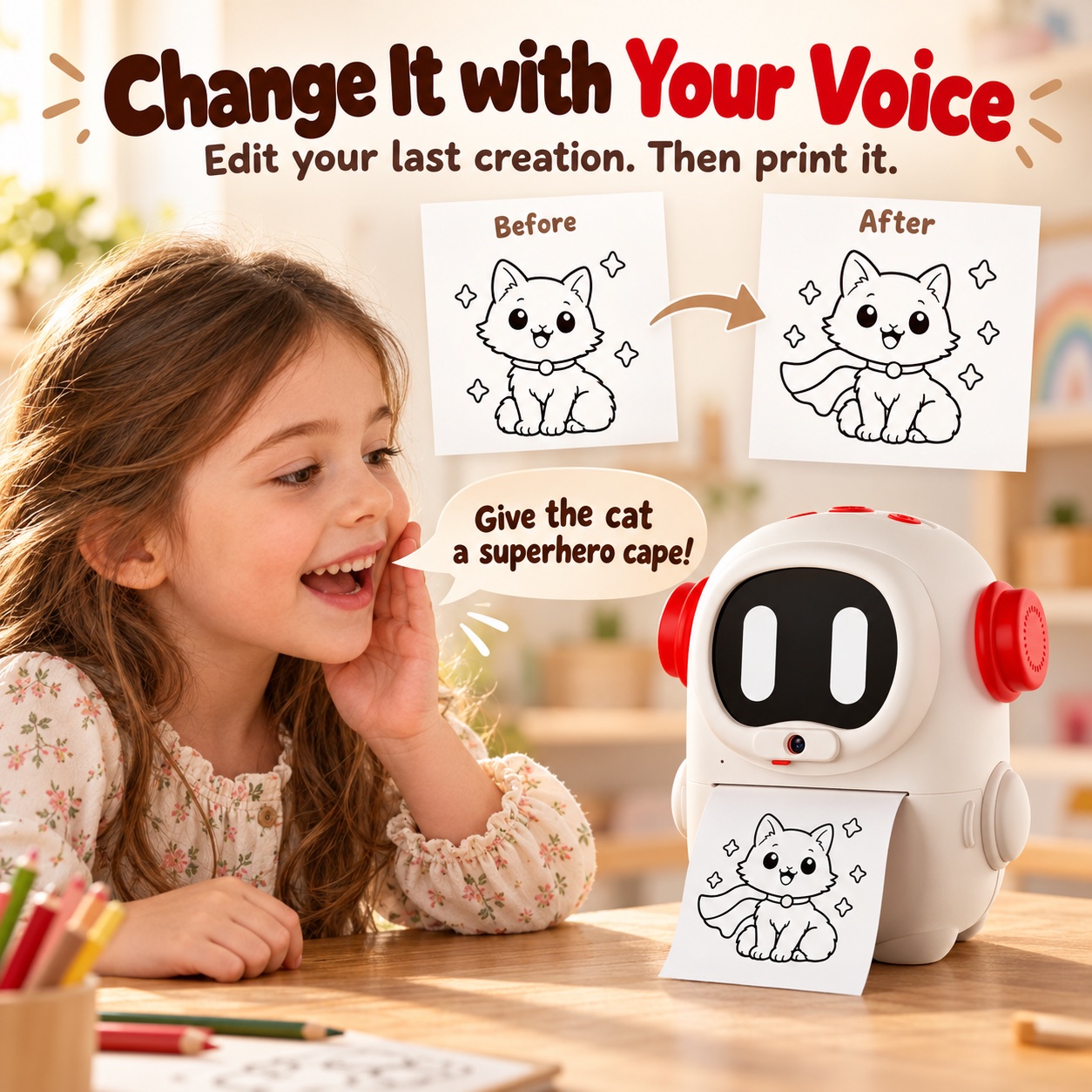
Ask for a change to your latest AI creation—try “give the cat a superhero cape”—then preview the new result before printing.
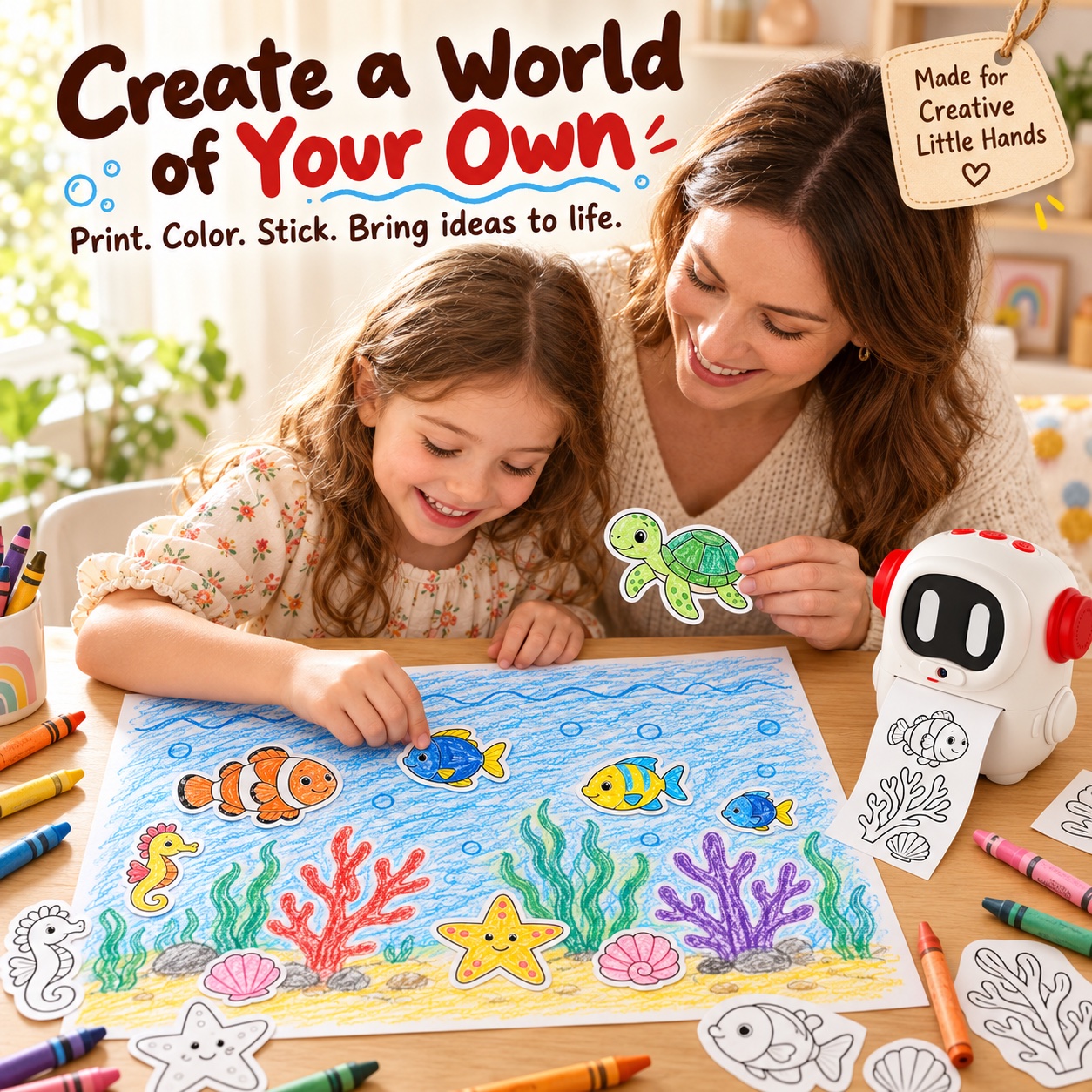
Print black-and-white sticker art, add your own colors, and build a scene together. The color comes from your pencils and imagination.
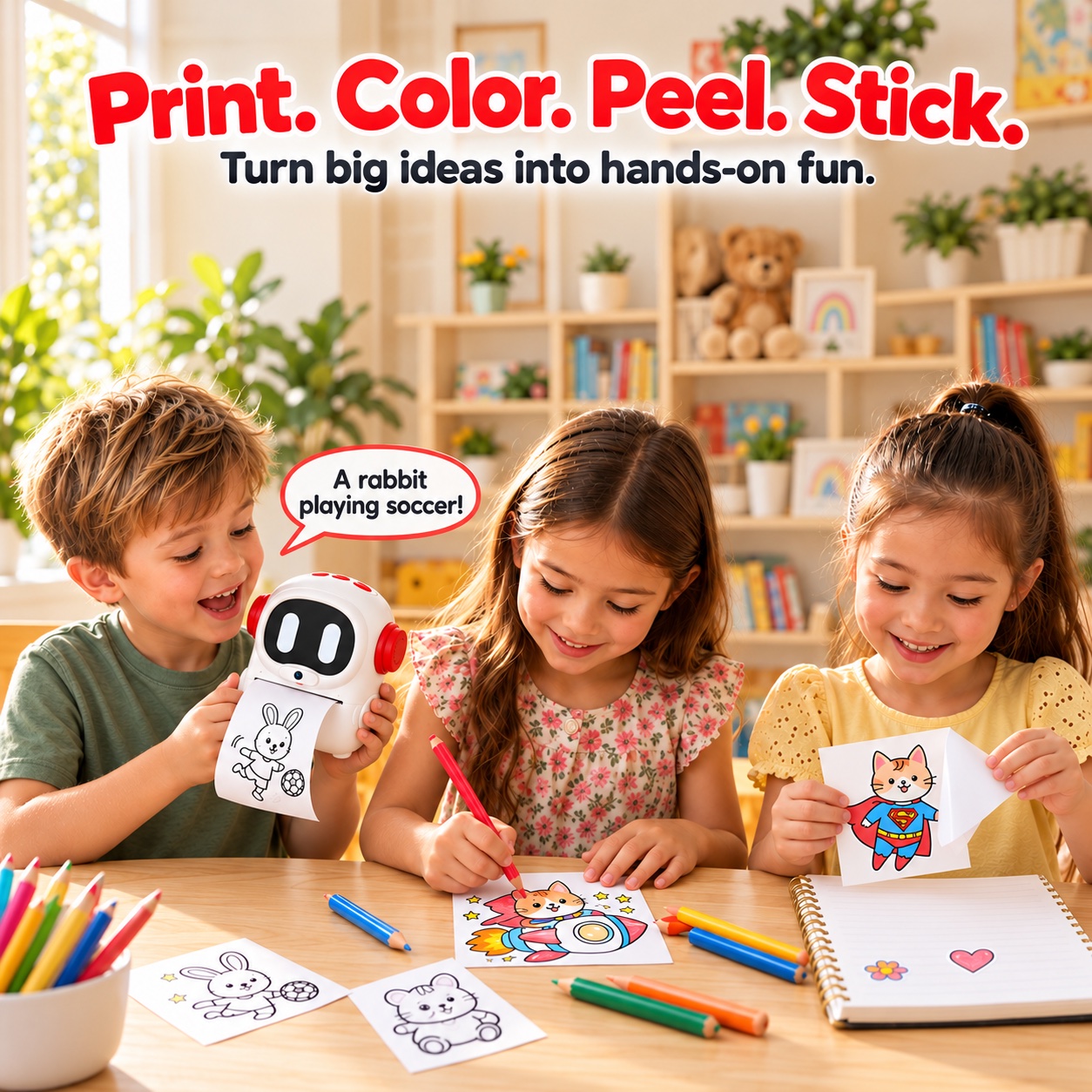
Turn a spoken idea into a print, then color, peel, and stick it into notebooks, cards, or a shared craft project.
Quick answers
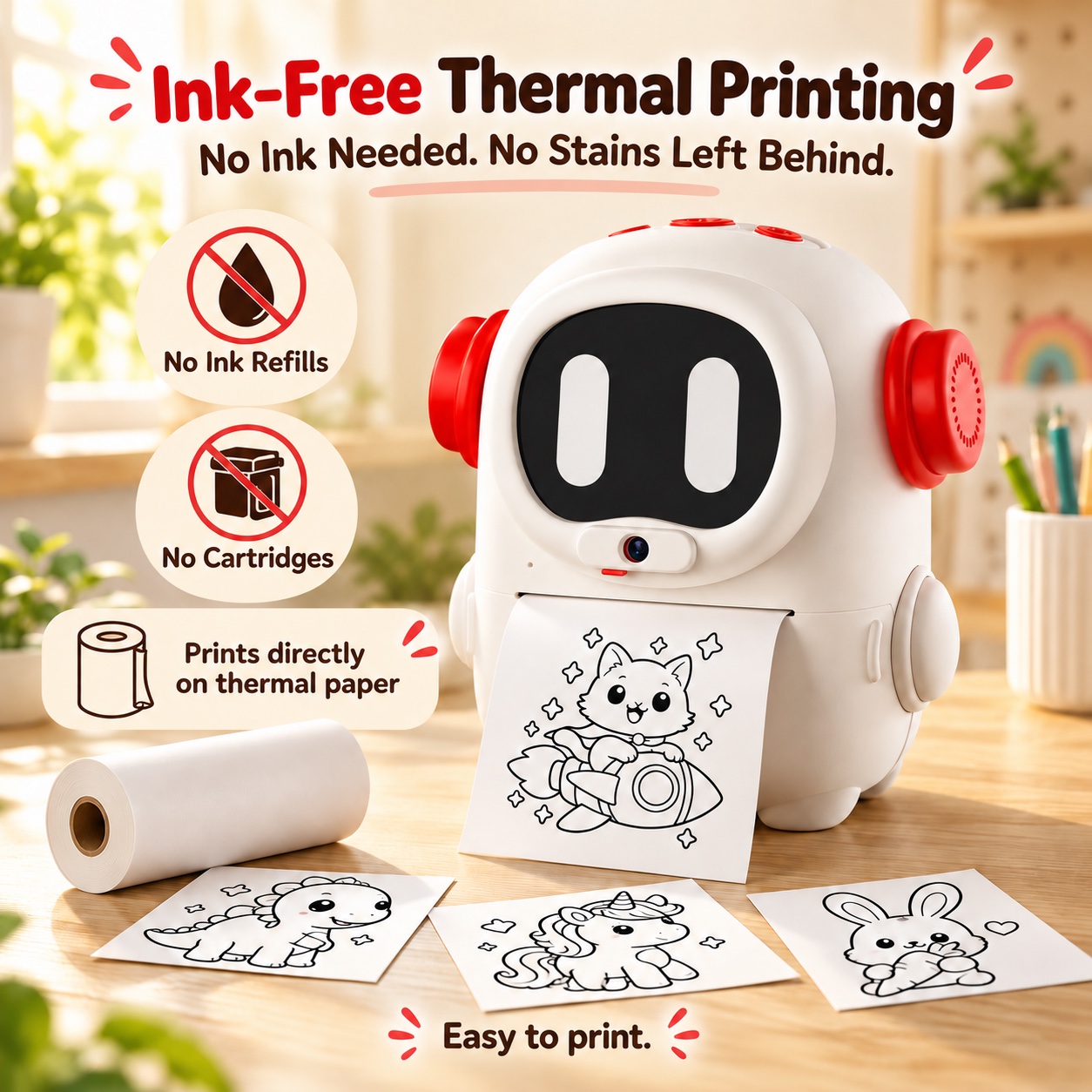
They are two different devices. AI Voice Sticker Maker uses ink-free thermal paper to print black-and-white images. AI Drawing Robot moves a pen to draw on paper. Explore AI Drawing Robot.
No. The touchscreen can show color previews, but thermal prints are black and white. Use compatible thermal sticker paper for peel-and-stick output.
Voice creation offers Cartoon, Anime, Paper Cut, and Sticky note. The camera photo workflow offers Grayscale, Photo, Cartoon, and Anime, plus built-in or AI-created frames.
New AI images, AI photo transformations, and AI frames need an internet connection. You can skip Wi-Fi during setup and use local camera capture and saved content. Connect later for AI features.
Visit the iBeed Amazon store for current listings and availability.
See the Sticker Maker guide for styles, photo modes, frames, and first-time setup, or contact Support.